Blog
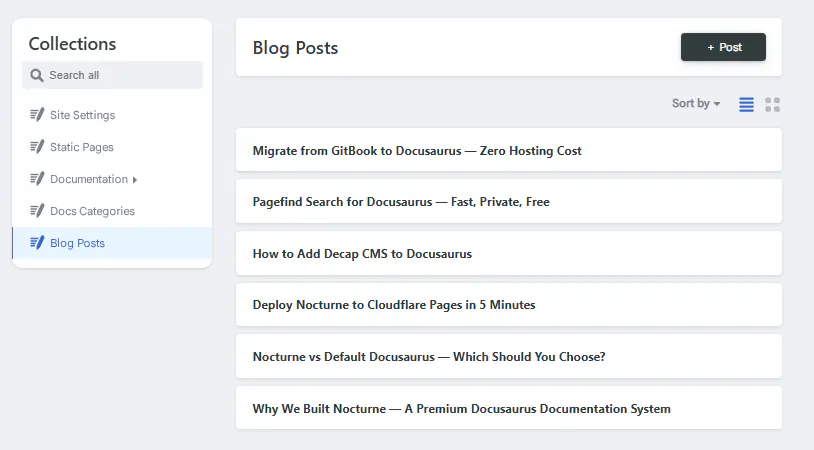
Blog posts are editable from Decap CMS. They live in blog/.
Where to Edit
In the CMS:
- Click Blog Posts in the sidebar
- Click any post — or New Blog Posts
What You Can Edit
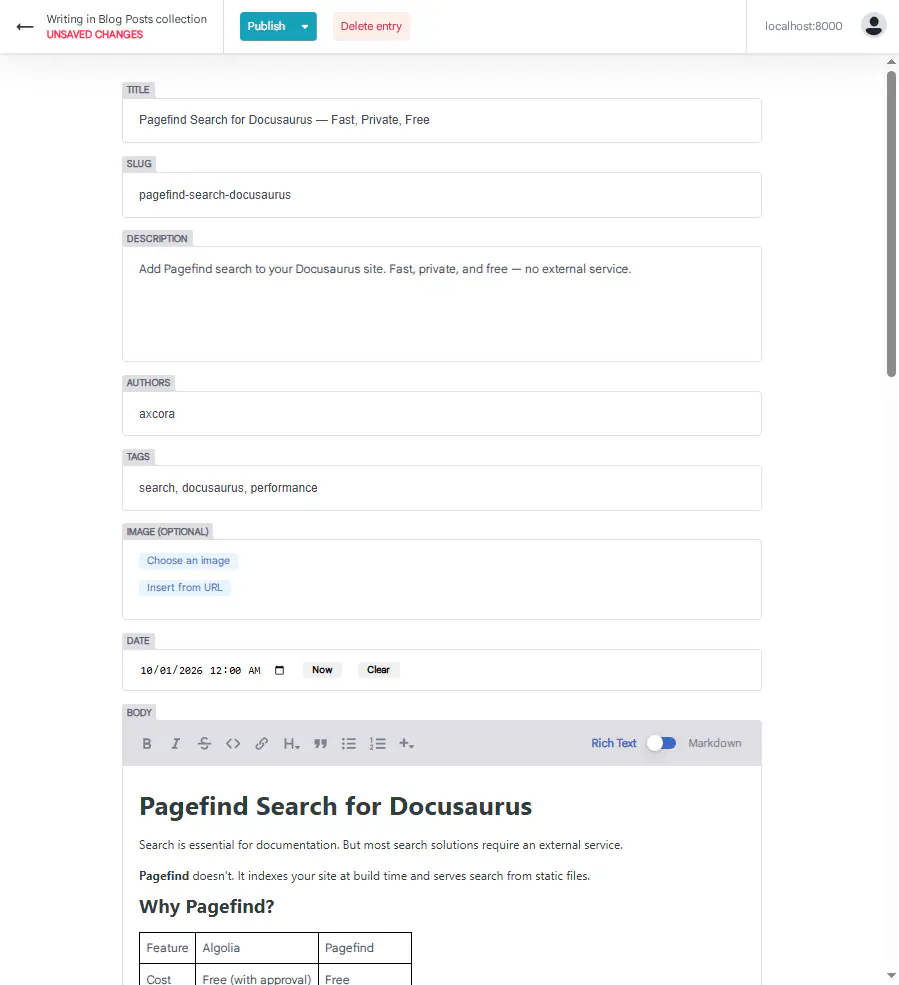
| Field | Purpose |
|---|---|
| Title | Post title |
| Slug | URL-friendly identifier |
| Description | Meta description |
| Authors | Post authors |
| Tags | Post tags |
| Image | Featured image |
| Date | Publish date |
| Body | Full article in Markdown |
Editing an Existing Post
- Click Blog Posts
- Click the post you want to edit
- Edit the fields
- Click Save
The post updates. The blog list reflects the change.
Creating a New Post
- Click Blog Posts
- Click New Blog Posts
- Fill in:
- Title
- Slug (auto-generated from title)
- Description
- Authors (default:
axcora) - Tags
- Image
- Date
- Body (Markdown)
- Click Save
The Body Field
The body is where your article lives. It's a Markdown editor with:
- Bold, italic
- Headings
- Lists
- Links
- Images
- Code blocks
- Tables
Example:
## The Problem

Most Docusaurus sites look the same.

## The Solution

Nocturne ships with a premium design system.
Slug
The URL-friendly identifier for your post. Used in the URL:
/blog/YOUR-SLUG
Example:
Slug: why-we-built-nocturne
URL: /blog/why-we-built-nocturne
Tips:
- Use lowercase
- Use hyphens, not spaces
- Keep it short
Authors
List of post authors. Authors are defined in blog/authors.yml.
Default:
axcora
To add multiple authors:
Click Add Authors, type the author key.
Tags
List of tags for the post. Tags are used for filtering and related posts.
Example:
docusaurus
documentation
design
Tips:
- Use 3–6 tags per post
- Use lowercase
- Be consistent across posts
Image
Featured image for the post. Optional but recommended.
Where to store: static/img/blog/
Reference:
/img/blog/your-image.webp
Recommended size: 1200×630
Date
Publish date. Format: YYYY-MM-DD.
Example:
2026-10-01
After Editing
- Click Save
- The post updates instantly
- Check the blog list for the new entry
Troubleshooting
Post doesn't appear in the blog list
- Check that the post has a valid date
- Check that the file is in
blog/ - Restart the dev server
Slug conflict
Two posts have the same slug. Change one.
Image doesn't load
- Check that the file exists in
static/img/blog/ - Check that the path starts with
/img/
Tags don't show
- Check that the tags are defined in
blog/tags.yml - Save the file
- Refresh the browser
What's Next?
Now let's look at the CMS limitations.