Home Page
The homepage is fully editable from Decap CMS. Every section lives in src/data/home.json.
Access on cms - SIte Settings - Home Page

Where to Edit
In the CMS:
- Click Site Settings
- Click Home Page
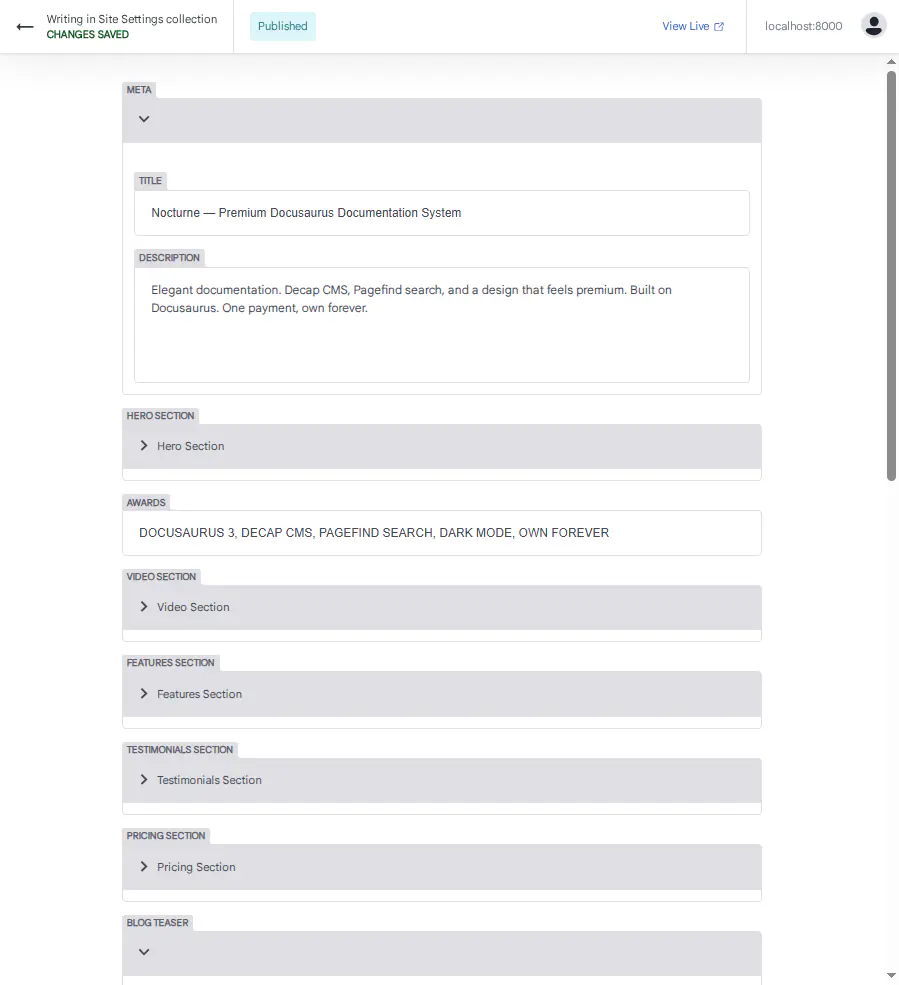
You'll see these sections:
- Meta
- Hero
- Awards
- Video
- Features
- Testimonials
- Pricing
- Blog Teaser
- CTA
Meta
Controls the page title and SEO description.
| Field | Purpose |
|---|---|
| Title | Browser tab + SEO title |
| Description | Meta description |
Example:
Title: Nocturne — Premium Docusaurus Documentation System
Description: Elegant documentation. Decap CMS, Pagefind search, and a design that feels premium.
Hero
The main section at the top of the homepage.
| Field | Purpose |
|---|---|
| Badge | Small label above the title |
| Title | Main headline (HTML allowed) |
| Subtitle | Description text |
| Actions | CTA buttons |
| Trust | Trust signals |
| Images | Hero images |
Editing the Title
The title supports HTML:
Documentation<br />that feels<br /><i>premium.</i>
Use <br /> for line breaks. Use <i> for italic.
Editing Action Buttons
Each button has:
| Field | Purpose |
|---|---|
| Text | Button label |
| External URL | Link to external site |
| Internal URL | Link within the site |
| Class Name | CSS class for styling |
Example — Gumroad button:
Text: GET NOCTURNE — $145 →
External URL: https://creativitaz.gumroad.com/l/nocturne
Class Name: atelier-pill
Awards
A simple list of trust badges below the hero.
Example:
DOCUSAURUS 3
DECAP CMS
PAGEFIND SEARCH
DARK MODE
OWN FOREVER
To add: click Add Awards, enter text, save.
Video
Embedded video section.
| Field | Purpose |
|---|---|
| Badge | Label above the title |
| Title | Video section heading |
| Subtitle | Description |
| Iframe | Video embed details |
| Bar | Info bar below the video |
Editing the Iframe
| Field | Purpose |
|---|---|
| Source | YouTube embed URL |
| Title | Accessibility title |
| Width | Video width |
| Height | Video height |
YouTube embed URL format:
https://www.youtube-nocookie.com/embed/VIDEO_ID?rel=0&modestbranding=1
Replace VIDEO_ID with your actual YouTube video ID.
Features
Feature cards section.
| Field | Purpose |
|---|---|
| Badge | Section label |
| Title | Section heading |
| Cards | Feature cards |
Each card has:
| Field | Purpose |
|---|---|
| Type | large or small |
| Title | Card title |
| Text | Card description |
| Image | Card image (large cards only) |
To add a card: click Add Cards, fill in fields, save.
Testimonials
Client quotes section.
Each testimonial has:
| Field | Purpose |
|---|---|
| Name | Client name |
| Role | Client role |
| Image | Client photo |
| Text | Quote |
To add: click Add List, fill in fields, save.
Pricing
Pricing tiers section.
Each plan has:
| Field | Purpose |
|---|---|
| Name | Plan name |
| Audience | Target audience |
| Badge | Optional badge |
| Price | Display price |
| Featured | Highlight this plan |
| Items | Feature list |
| Action | CTA button |
To add a plan: click Add Plans, fill in fields, save.
Blog Teaser
Link to your blog.
| Field | Purpose |
|---|---|
| Title | Section heading |
| Text | Description |
| Link | Button text + URL |
CTA
Final call-to-action at the bottom.
| Field | Purpose |
|---|---|
| Title | CTA heading |
| Action | Button text + URL |
| Subtitle | Small text below |
Editing Tips
- Save often — each save rebuilds the site
- Test locally first — before deploying
- Keep it short — hero titles work best under 10 words
- Use HTML sparingly — only
<br />and<i>
Troubleshooting
Changes don't appear
- Check that
npx decap-serveris running - Refresh the browser
- Check the terminal for errors
HTML shows as text
Use dangerouslySetInnerHTML in the component, or check the field config.
Image doesn't upload
- Check that
static/img/exists - Check that the file is under 10 MB
- Restart the Decap server
What's Next?
Now let's edit the navbar.