Media
Nocturne includes a media library in Decap CMS. Upload images, logos, and files — then use them in any content field.
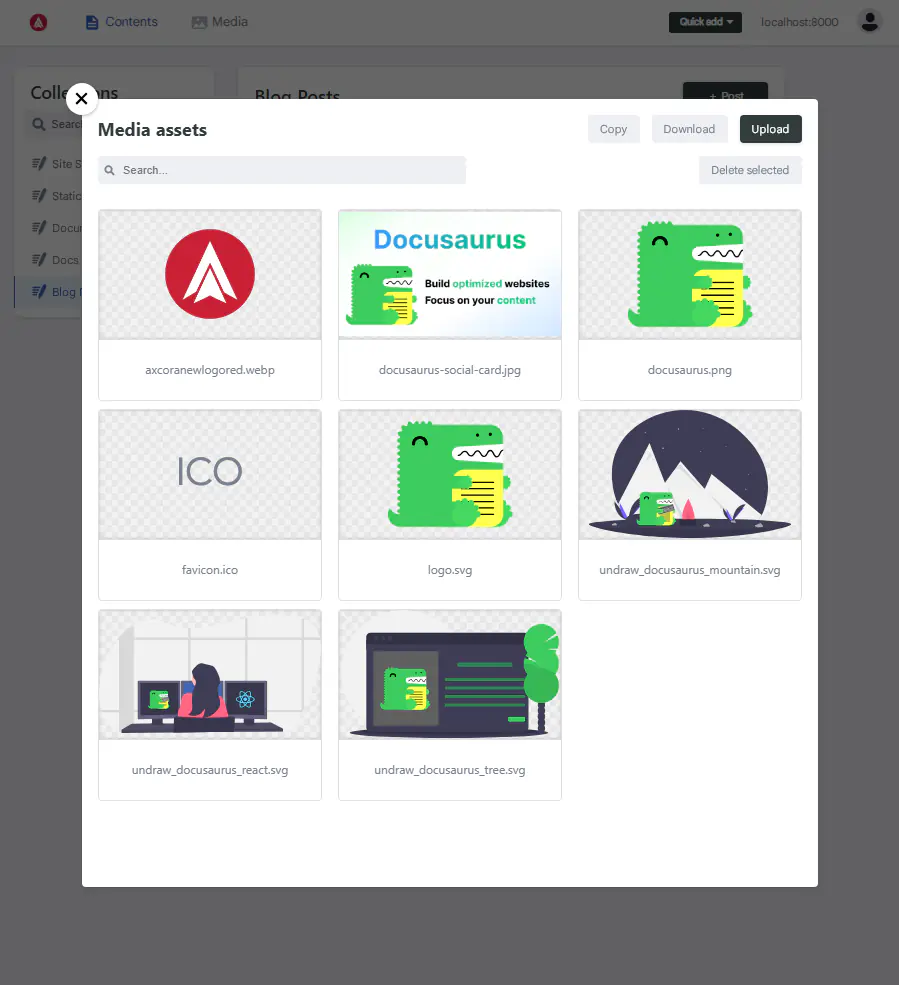
Where Media Is Stored
All uploaded files go to:
static/img/
Referenced in content as:
/img/filename.ext
The mapping is defined in static/admin/config.yml:
media_folder: "static/img"
public_folder: "/img"
| Setting | Purpose |
|---|---|
media_folder | Where files are saved on disk |
public_folder | URL path used in content |
You don't need to change these — Nocturne ships pre-configured.
Uploading an Image
In the CMS:
- Click any image field — for example, Site Settings → Home Page → Hero → Main Image
- Click Upload
- Select a file from your computer
- Wait for the upload to complete
- Click Save
The file is stored in static/img/ and referenced as /img/filename.ext.
Choosing an Existing Image
If the image is already in static/img/:
- Click any image field
- Click Choose an existing image
- Browse the media library
- Select the image
- Click Save
Replacing an Image
- Open the image field
- Click Upload
- Select the new image
- Click Save
The new file is stored. The old file remains in static/img/ — you can delete it manually later.
Deleting an Image
- Open any image field
- Click Choose an existing image
- Hover over the image you want to delete
- Click the trash icon
- Confirm
Warning: Deleting an image used elsewhere will break those pages. Check first.
Supported Formats
Nocturne works with any image format your browser supports.
| Format | Best For | Notes |
|---|---|---|
| AVIF | Hero images, featured images | Smallest file size |
| WebP | General use | Wide browser support |
| JPG | Photos | Universal |
| PNG | Logos, icons with transparency | Larger files |
| SVG | Icons, logos | Scalable, tiny |
Other files: PDF, JSON, and text files can also be uploaded.
Recommended Sizes
| Use | Size | File Size |
|---|---|---|
| Hero image | 1600×900 | Under 200 KB |
| Featured image | 1200×630 | Under 150 KB |
| Logo | SVG or 200×200 | Under 20 KB |
| Favicon | 32×32 or 64×64 | Under 10 KB |
| Blog post image | 1200×630 | Under 150 KB |
| Project image | 800×600 | Under 100 KB |
Image Paths in Different Files
In JSON data files (src/data/*.json):
img/nocturne-hero.webp
No leading slash.
In Markdown files (docs/*.md, blog/*.md, src/pages/*.md):
/img/nocturne-hero.webp
With leading slash.
Why the difference?
- JSON files use paths relative to
static/ - Markdown files use absolute paths from the site root
Where Images Are Used
| Location | Field | Example Path |
|---|---|---|
| Site Settings → Site Configuration | Favicon, Image | img/nocturne-favicon.webp |
| Site Settings → Home Page → Hero | Main Image | /img/nocturne-hero.webp |
| Site Settings → Home Page → Features | Card Image | /img/mockup/nocturne-feature.webp |
| Site Settings → Home Page → Testimonials | Client Image | /img/client.webp |
| Site Settings → Sidebar Widgets → About | Widget Image | /img/mockup/nocturne-preview.webp |
| Docs | Body (Markdown) |  |
| Blog | Featured Image | /img/blog/post-cover.webp |
| Static Pages | Body (Markdown) |  |
Folder Structure
Media is stored in static/img/. Organize it however you like:
static/img/
├── nocturne-favicon.webp
├── nocturne-og.webp
├── nocturne-logo.webp
├── mockup/
│   ├── nocturne-hero.webp
│   ├── nocturne-feature.webp
│   └── nocturne-preview.webp
└── blog/
    ├── why-nocturne.webp
    └── nocturne-vs-docusaurus.webp
Subfolders are allowed. Reference them with the full path:
/img/blog/why-nocturne.webp
Image Naming Best Practices
Use clean, descriptive filenames:
| Good | Bad |
|---|---|
nocturne-hero.webp | IMG_2024_final_v2.webp |
client-photo.webp | Untitled-1.webp |
logo-dark.svg | logo (1).svg |
Rules:
- All lowercase
- Use hyphens, not spaces
- No special characters
- Keep it short
Optimizing Images
Before uploading, optimize your images:
- Resize to the largest size needed
- Convert to AVIF or WebP using Squoosh
- Compress — aim for 60–80% quality
- Upload
Smaller images mean:
- Faster page loads
- Better Lighthouse scores
- Happier users
After Uploading
- Click Save in the CMS
- The image appears in the field
- The site rebuilds automatically
- Refresh your browser to see it
Common Issues
Image doesn't appear after upload
- Check that
static/img/contains the file - Check that the field value starts with
/img/(Markdown) orimg/(JSON) - Refresh with
Ctrl + Shift + R - Check the terminal for errors
Upload fails
- Check that
npx decap-serveris running - Check that the file is under 10 MB
- Check that
static/img/exists and is writable - Try a different browser
Image appears broken on the live site
The path in your content must match a file inside static/img/. Check for typos.
Image is too large
Convert to WebP or AVIF using Squoosh. Aim for under 200 KB per image.
Media library is empty
- Check that files exist in
static/img/ - Refresh the CMS page
- Restart
npx decap-server
Tips
- Use AVIF or WebP — smallest file sizes
- Resize before uploading — don't upload 4000px photos
- Name files descriptively — helps with SEO
- Use subfolders — organize by type (blog, mockup, etc.)
- Delete unused images — keeps your repo lean
What's Next?
Now let's look at the CMS limitations.