Navbar
The navbar is editable from Decap CMS. It lives in src/data/navbar.json.
Where to Edit
In the CMS:
- Click Site Settings
- Click Navbar & Footer
Fields
| Field | Purpose |
|---|---|
| Logo Text | Text logo in the navbar |
| Logo Link | Where the logo links to |
| Menu Links | Navigation items |
| CTA Button | Call-to-action button |
| Footer | Footer content |
| Theme Toggle | Dark/light mode icons |
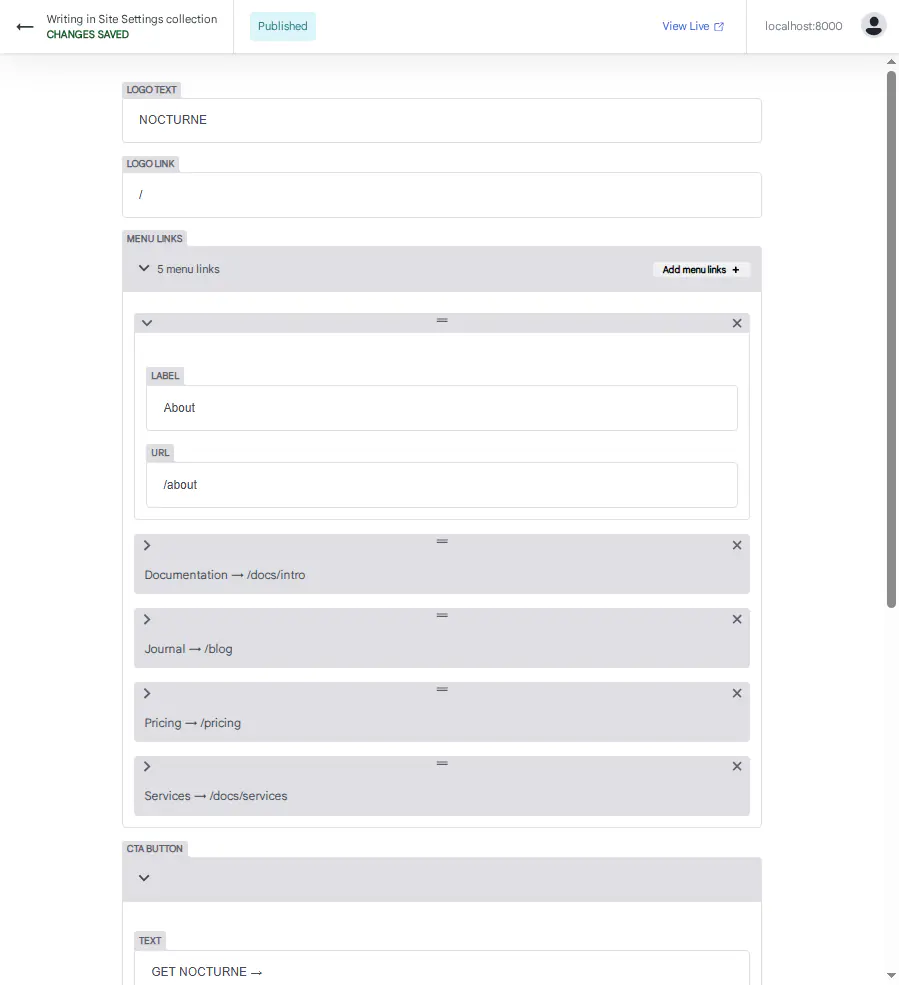
Logo
The text logo shown in the navbar.
Example:
NOCTURNE
Logo Link: / (homepage)
Menu Links
Each menu item has:
| Field | Purpose |
|---|---|
| Label | Text shown in the menu |
| URL | Link destination |
Example:
Documentation → /docs/intro
Journal → /blog
Pricing → /pricing
Changelog → /changelog
To add a link:
- Click Add Links
- Fill in Label and URL
- Click Save
To remove: click the trash icon next to the item.
CTA Button
The call-to-action button on the right side of the navbar.
| Field | Purpose |
|---|---|
| Text | Button label |
| URL | Link destination |
Example:
Text: GET NOCTURNE →
URL: https://creativitaz.gumroad.com/l/nocturne
Footer
Footer content shown at the bottom of every page.
| Field | Purpose |
|---|---|
| Copyright | Copyright line |
| Badge | Small badge text |
Example:
Copyright: © 2026 NOCTURNE
Badge: ● BUILT ON DOCUSAURUS
Theme Toggle
Icons for the dark/light mode toggle.
| Field | Purpose |
|---|---|
| Dark Icon | Icon shown in dark mode |
| Light Icon | Icon shown in light mode |
Default:
Dark Icon: ☀
Light Icon: ☾
After Editing
- Click Save
- The navbar updates instantly
- Refresh if needed
Troubleshooting
Menu links don't appear
- Check that each link has both Label and URL
- Save the file
- Refresh the browser
Logo text is cut off
Shorten the logo text. Long text may not fit on mobile.
CTA button color looks wrong
The button style is in src/css/nocturne.css — check the .navbar section.
What's Next?
Now let's edit the footer.