Static Pages
Static pages are editable from Decap CMS. They live in src/pages/.
Access CMS on Static Pages
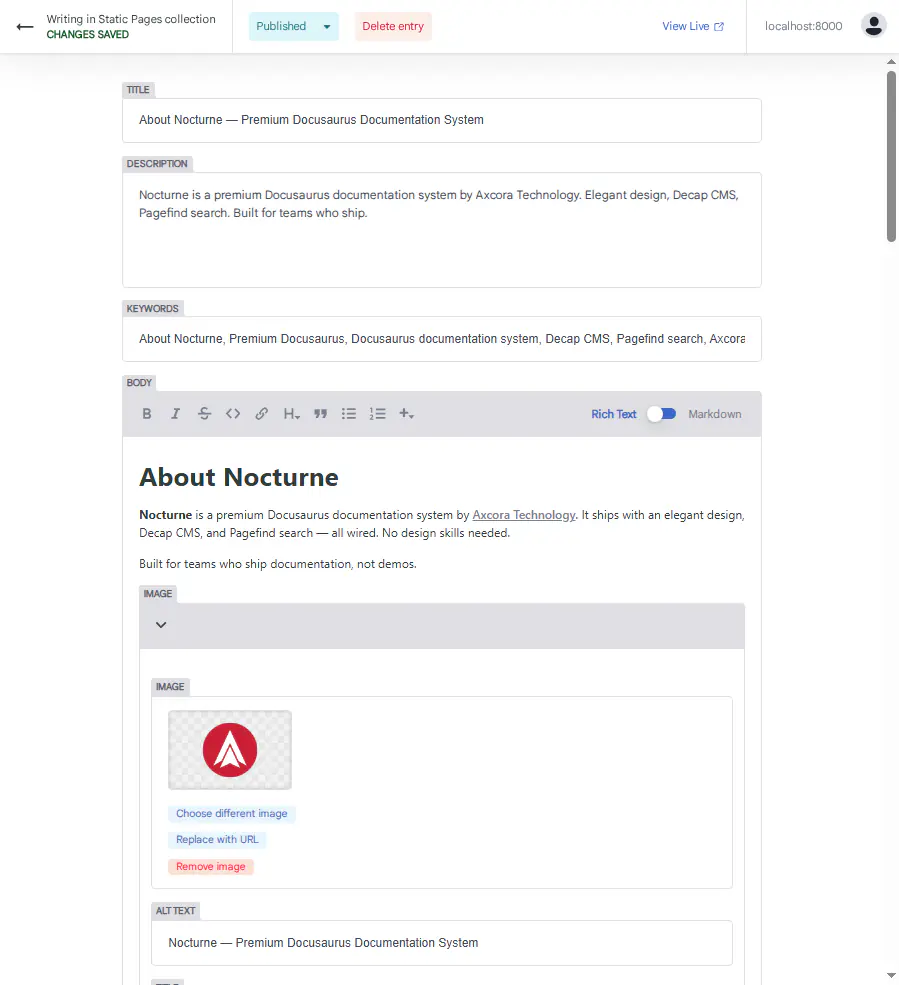
Where to Edit
In the CMS:
- Click Static Pages in the sidebar
- Click any page — or New Static Pages
You'll see these fields:
- Title
- Description
- Keywords
- Body
Title
The page title. Shown in the browser tab and used in SEO metadata.
Example:
About Nocturne
Tips:
- Keep it under 60 characters
- Use your brand name
- Be specific
Description
A short description of the page. Used in SEO metadata and social shares.
Example:
Nocturne is a premium Docusaurus documentation system by Axcora Technology. Elegant design, Decap CMS, Pagefind search.
Tips:
- Keep it under 160 characters
- Describe what the page is about
- Be specific, not generic
Keywords
A list of keywords for SEO. Each keyword is a separate item.
Example:
About Nocturne
Premium Docusaurus
Docusaurus documentation system
Decap CMS
Pagefind search
Axcora Technology
To add a keyword:
- Click Add Keywords
- Type the keyword
- Press Enter
- Click Save
To remove: click the trash icon next to the keyword.
Tips:
- Use 5 to 10 keywords
- Use specific phrases, not single words
- Don't repeat the same keyword
Body
The page content in Markdown. This is where the actual content lives.
Example:
# About Nocturne

**Nocturne** is a premium Docusaurus documentation system by [Axcora Technology](https://axcora.com).

It ships with an elegant design, Decap CMS, and Pagefind search — all wired.

## What Makes Nocturne Different

- Premium design system
- Decap CMS included
- Pagefind search
Markdown supports:
- Bold, italic
- Headings (
#,##,###) - Lists (bulleted, numbered)
- Links
[text](url) - Images
 - Code blocks
- Tables
Full Example
Here's what src/pages/about.md looks like:
---
title: About Nocturne — Premium Docusaurus Documentation System
description: Nocturne is a premium Docusaurus documentation system by Axcora Technology. Elegant design, Decap CMS, Pagefind search.
keywords:
  - About Nocturne
  - Premium Docusaurus
  - Docusaurus documentation system
  - Decap CMS
  - Pagefind search
  - Axcora Technology
---

# About Nocturne

**Nocturne** is a premium Docusaurus documentation system by [Axcora Technology](https://axcora.com).

It ships with an elegant design, Decap CMS, and Pagefind search — all wired. No design skills needed.

## Why We Built Nocturne

Documentation is often the first thing users see. And the last thing teams polish.

We built Nocturne because documentation deserves better.

## What You Get

- Premium design system
- Decap CMS
- Pagefind search
- Full documentation
Default Pages
Nocturne ships with these static pages:
| File | URL | Purpose |
|---|---|---|
src/pages/about.md | /about | About page |
src/pages/pricing.md | /pricing | Pricing page |
src/pages/services.md | /services | Services page |
You can add more — click New Static Pages in the CMS.
Creating a New Page
- Click Static Pages
- Click New Static Pages
- Fill in:
- Title
- Description
- Keywords (list)
- Body (Markdown)
- Click Save
The page automatically gets a URL based on the title:
Title: About Nocturne → /about-nocturne
Title: Pricing → /pricing
Adding Images
Place images in static/img/. Reference them:

Note: Use /img/ with a leading slash — this is different from the JSON data files where you use img/ without the slash.
After Editing
- Click Save in the CMS
- The page updates instantly
- Refresh your browser to see changes
Changes affect:
- Page content
- SEO metadata
- Social share preview
- Sitemap
Common Issues
Page doesn't appear in the navbar
The page exists, but it's not linked in the navbar. Add it manually in src/data/navbar.json — see Navbar & Footer.
Page returns 404
- Check that the file is in
src/pages/ - Check that the frontmatter is valid
- Restart the dev server
Body content doesn't render
- Check the Markdown syntax
- Preview in the CMS editor
- Check the terminal for errors
Image doesn't load
- Check that the file exists in
static/img/ - Check that the path starts with
/img/ - Check the file extension
Keywords don't show in SEO
- Check that the keywords are saved in the file
- Check
docusaurus.config.tsfor keyword handling - Rebuild the site
Tips
- Keep pages focused — one topic per page
- Use Markdown headings —
##and### - Add internal links — link to other pages
- Use images — visual breaks improve readability
- Update SEO fields — title, description, keywords
What's Next?
Now let's edit documentation pages.